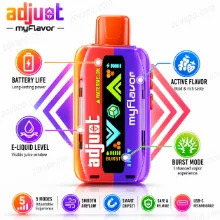
Geek Bar Screen Symbols Explained: What Every Icon Means
Geek Bar screen symbols decoded: the droplet, the lightning bolt, the mode animations, flashing lights and exactly what each icon is telling you.

There are only three Geek Bar screen symbols you need to read day to day:
- Droplet — e-liquid remaining. When this hits zero the device is finished.
- Lightning bolt — battery remaining. Recharge it; it comes back.
- The animation — slow star field means Regular Mode, fast stars or a rocket mean Pulse Mode.
Everything else is a status message. Red flash = battery empty, plug it in. White or blue blink = you drew too long, rest a moment.
- The two numbers on a Geek Bar screen measure different things: droplet is liquid, bolt is battery.
- Only the battery comes back. The droplet is a one-way countdown to the end of the device.
- A faster animation means Pulse Mode, which roughly halves runtime.
- Red flash is low-voltage protection; white or blue blink is the draw cut-off. Neither is a fault.
- Exact Geek Bar screen symbols vary between models — the meanings below are consistent across the current screen range.


The three Geek Bar screen symbols that matter
Geek Bar screen symbols look busier than they are. Strip the animation away and a screen model is showing you three things: how much liquid is left, how much battery is left, and which power mode you are in.
The distinction people miss when reading Geek Bar screen symbols is that the two numbers are not the same kind of number. The battery percentage is a loop — it drops, you charge it, it returns to 100%. The liquid percentage is a one-way trip. It only ever goes down, and when it reaches zero the device is done, because a disposable cannot be refilled and should never be opened.
That is also why Geek Bar screen symbols can read 100% battery on a device that is finished. If you have ever wondered why a fully charged Geek Bar tastes burnt and produces nothing, that is the reason, and the droplet was telling you.
Every Geek Bar screen symbol, decoded
Counts down as a percentage from 100% to 0% and tracks the liquid reservoir, not the battery. This is the number that decides when the device is finished, because a disposable cannot be refilled. Below roughly 15% the wick stops being reliably fed and flavour starts to drop off.
Percentage of charge left. Vapour density noticeably softens once this drops below about 20–30%, so it is worth charging before it empties rather than running it flat. On a rechargeable model this number returning to 100% is normal; the droplet never does.
The lower-power mode, around 12W. Slower, calmer animation. This is the mode the rated puff count is measured in — on the Pulse X 25K that is the full 25,000.
The higher-power mode, around 20W, with a visibly faster animation. Considerably more vapour, and roughly half the runtime. On the Pulse X that is about 15,000 puffs instead of 25,000.
The battery readout climbs while connected. Typical full charge is well under an hour on a low-output plug. When it settles at full, unplug it.
The cell is effectively empty and the device has stopped firing to protect itself. Not a fault. Connect USB-C and it returns.
You have drawn for longer than the device allows in one go, typically around ten seconds, or chain-vaped into the limit. Rest it a few seconds and take shorter draws.
If nothing lights at all: charge it first. If it charges and still does nothing, the device has reached the end of its life.
Geek Bar screen symbols for Regular vs Pulse Mode
Two of the Geek Bar screen symbols change together when you switch mode. On dual-mode devices you switch by holding the mode button beside the screen for about two seconds. The whole display refreshes when it changes.
| Regular Mode | Pulse Mode | |
|---|---|---|
| Animation | Slow star field or constellation | Fast stars, warp effect or rocket |
| Power | ~12W | ~20W |
| Vapour | Standard | Substantially more |
| Runtime (Pulse X 25K) | ~25,000 puffs | ~15,000 puffs |
| Runtime (Pulse 15K) | ~15,000 puffs | ~7,500 puffs |
| Burnt-taste risk | Low | Higher — the wick has to keep up |
If your device suddenly seems to be draining fast, check the Geek Bar screen symbols for the animation before assuming anything is wrong. Running in Pulse Mode without realising is the single most common explanation, and it also raises the odds of a burnt taste.
Flashing Geek Bar screen symbols, decoded
Battery empty
Low-voltage protection has cut in. Connect USB-C. See our charging guide for what to plug it into.
Draw cut-off
You held the draw past the limit, around ten seconds. Wait a few seconds and take shorter puffs.
Charging normally
The battery number rising while plugged in is exactly what should happen. Unplug when it settles.
Flat or finished
Charge it first. If it charges and still does nothing, the device is at the end of its life.
Which models show Geek Bar screen symbols
| Model | Display | Shows |
|---|---|---|
| Pulse 15K | Indicator | Battery and mode |
| Pulse X 25K | Full colour digital | Liquid, battery, mode animation |
| Pulse 2 25K | Digital | Liquid, battery, mode |
| Pulse X2 50K | 3D animated | Liquid, battery, animated mode |
| CLR 50K | Digital | Liquid, battery, mode |
| Mate 60K | Digital | Pod level, battery |
When Geek Bar screen symbols look wrong
Two oddities in Geek Bar screen symbols come up often enough to be worth naming.
Geek Bar screen symbols showing 0% liquid on a device that still works. This is normal near the end. The percentage is estimated from puff count and power draw rather than measured directly, so it can reach zero while a little liquid remains. Expect flavour to fall away quickly and a burnt taste to arrive soon after.
Geek Bar screen symbols jumping in large steps. On a genuine device the number moves smoothly. Large jumps, stuttering animation, or a liquid readout stuck at 100% far too long are among the tells of a counterfeit — the screen is the hardest part to fake convincingly. If yours behaves that way, verify the security code.
Models with a full screen
Every Geek Bar with a display, in stock and shipped from authorised distribution.
Pulse X 25KPulse X2 50KAll Geek BarFrequently asked questions
What do the symbols on a Geek Bar screen mean?
The droplet is e-liquid remaining, the lightning bolt is battery remaining, and the animation shows the power mode — a slow star field for Regular Mode, fast stars or a rocket for Pulse Mode. Red flashing means the battery is empty; white or blue blinking means you drew for too long.
What does the water drop mean on a Geek Bar?
E-liquid remaining, as a percentage from 100% down to 0%. It is a one-way countdown — unlike the battery, it never goes back up, and when it reaches zero the device is finished.
Why does my Geek Bar say 0% but still work?
The liquid percentage is estimated from puff count and power draw rather than measured directly, so it can hit zero while a little liquid remains. Expect the flavour to fade quickly and a burnt taste to follow.
What does a red flashing light mean on a Geek Bar?
Low-voltage protection. The battery is effectively empty and the device has stopped firing to protect itself. It is not a fault — connect a USB-C cable and it will return.
What does it mean when my Geek Bar blinks white or blue?
The overtime cut-off has engaged, usually because a single draw ran past about ten seconds or you chain-vaped into the limit. Rest it a few seconds and take shorter puffs.
How do I switch between Regular and Pulse Mode?
Hold the mode button beside the screen for about two seconds. The display refreshes and the animation speeds up or slows down to show which mode you are in.
Which Geek Bar has the best screen?
The Pulse X2 50K has the most elaborate display, with 3D animation. The Pulse X 25K has a full-colour digital screen showing liquid, battery and mode, and is the more common choice.
Can the screen tell me if my Geek Bar is fake?
It is one of the better indicators. Genuine screens animate smoothly and move the battery number in small steps. Stuttering animation, large percentage jumps or a liquid readout stuck at 100% are recognised counterfeit tells — confirm with the security code check.
Sources & further reading: icon meanings compiled from manufacturer-adjacent documentation and hands-on use; specifications cross-checked against the Pulse X 25K product page. Geek Bar does not publish an official icon glossary, so artwork varies by model. VapeOwls Geek Bar Pulse guide; VapeTrends; Geek Bar official.
Ready to shop?
Everything in this guide is stocked at Zovapo — 100% authentic, fast U.S. shipping, free standard shipping over $75 (clearance items excluded). Adults 21+ only.